How to Do Text to Speech on TikTok A Creator's Guide
DailyShorts AI
Using text-to-speech on TikTok is surprisingly simple. Once you've recorded your video, just add a text overlay, tap it, and hit the "Text-to-speech" icon. In an instant, an AI voice reads your text aloud, giving your content an immediate narration.
Why TikTok's AI Voice Is a Growth Hack
Before we get into the nitty-gritty, let's talk about why this feature is way more than just a fun gimmick. It's a genuine tool for growing your audience. Using TikTok's text-to-speech isn't just about hopping on a trend; it’s a proven strategy for hooking viewers within those make-or-break first few seconds.
Think of the AI voice as an instant attention-grabber. It provides context and kicks off the story without forcing someone to read tiny text on their screen. This makes your content feel right at home on the For You Page, where audio is king.
Boost Engagement and Accessibility
Let's be honest, the robotic sound of the TikTok voice is iconic at this point. It’s part of the platform's culture. Tapping into that familiar sound can make your content feel more native and current, which often translates into more likes, comments, and shares.
But it goes deeper than that. TTS is a game-changer for accessibility.
- Inclusive Content: It opens up your videos to visually impaired users who can now listen to the narrative.
- Passive Viewing: It’s perfect for people who are multitasking—listening to TikToks while they cook, clean, or commute.
- Clear Narration: It gives you a crisp, easy-to-understand voiceover for tutorials or complex stories where clarity is key.
Making your content accessible isn't just a nice thing to do; it’s a smart way to reach a much wider audience.
Increase Watch Time and Retention
Here’s the real kicker: using TTS can have a massive impact on how long people actually watch your videos. And on TikTok, watch time is everything.
Videos with audio narration crush silent ones, but the type of audio matters. Research shows that while professionally narrated videos get a solid 61.4% completion rate, that number skyrockets to 65.8% when creators use popular AI voices.
That's a 23% increase in completion compared to videos with no audio narration at all.
When you keep viewers watching longer, you're sending powerful positive signals to the TikTok algorithm. This tells the platform your content is good, increasing its chances of wider distribution and maybe even going viral.
Getting a handle on how AI for content creation↗ is changing the game is a huge advantage for any creator. Mastering a simple tool like TikTok's AI voice is a fantastic first step. For more on this, check out our guide on how to make viral TikTok videos: https://dailyshorts.ai/blog/how-to-make-viral-tiktok-videos↗.
Using TikTok's Native Text to Speech Feature
Let's walk through how to add that classic AI narrator directly inside the TikTok app. This is more than just hitting a button; it’s about making the voice an integral part of your video and a powerful storytelling tool.
First up, once you've shot your clip or uploaded a video, you'll find yourself on the main editing screen. This is your command center. Your first move is to lay down some text.
Go ahead and tap the "Text" icon—it looks like "Aa"—over on the right side of the screen. Type out the first bit of what you want the voice to say. I've found it's much better to work in smaller, bite-sized chunks rather than typing out a massive paragraph all at once.
Activating the AI Voice
With your text on the screen, just tap on the text box itself. A little menu will pop up with a few choices, but the one you’re looking for is "Text-to-speech." The icon is a little person's head with sound waves coming out.
Tap that icon, and boom—you'll immediately hear a preview of the default AI voice reading your words. It’s that easy to get the ball rolling.
At this point, a whole row of different voices will appear at the bottom. This is where you can really start to define the mood of your video. Tap through them and see what fits. Some are super high-energy, others are more straight-faced, and a few are just plain goofy.
- Trickster or Chipmunk: These are my go-to for funny skits or meme videos. They add an instant layer of comedy and exaggeration that just works.
- Jessie or Alto Voice: Think of these as the classic narrators. They’re the clear, neutral voices you hear all over TikTok for tutorials and storytime videos. They're easy to understand and keep your audience locked in.
- Tenor or Male Voices: These can give your video a more dramatic or authoritative feel. I've seen them used really well for deep-dive informational content or intense retellings.
Honestly, the best way to find your style is just to play around with them. See what voice resonates with the story you’re trying to tell.
Pro Tips for a Polished Sound
Turning the feature on is one thing, but making it sound good takes a bit more finesse. One of the best tricks I've learned is to break your script into several smaller text boxes. This helps you create a much more natural, conversational pace instead of having one long, robotic drone.
Pro Tip: Don't be afraid to misspell words on purpose to get the pronunciation right. If the AI voice keeps tripping over a name like "Siobhan," try spelling it out phonetically, like "Shiv-on." It’s a simple hack that works wonders.
Another absolute must is adjusting the duration of each text box. After you’ve applied the text-to-speech, tap the text box again and choose "Set duration." This is how you sync each line of narration perfectly with the action on screen. It’s what makes a video feel seamless and professional instead of clunky.
For anyone who creates longer narratives, getting this timing right over and over can be a real time-sink. A dedicated tool can be a game-changer here. You can start crafting tighter scripts right away with our free TikTok script generator↗. Mastering this timing is what truly separates amateur videos from pro-level content.
Is TikTok's Voice Not Cutting It? Time to Find Your Own Sound
Let's be real—the standard TikTok text-to-speech voices are everywhere. They’re recognizable, sure, but that's also the problem. When your video sounds just like a thousand others, it's tough to get noticed. If you want to build a real brand and have people instantly know it's you, you need a sound that’s all your own.
This is where dedicated voice generation tools come in, and they're a complete game-changer. Platforms like DailyShorts are built for this exact purpose. Forget the handful of robotic options everyone’s using. Instead, you get access to a huge library of incredibly lifelike AI voices that can convey real emotion. We're talking nuance, personality, and a level of quality that makes the default TikTok voices sound ancient.
It’s a huge shift in how creators think about audio. The global TTS market is expected to hit a staggering $7.6 billion by 2029, and that growth is all about making professional-grade voiceovers accessible to everyone. The days of needing a professional studio or expensive software are long gone.
Ditching the Clunky, Time-Sucking Workflow
Think about the old way of doing this. You’d have to jump through so many hoops:
- Write your script in a notes app.
- Bounce over to a separate TTS website to generate the audio.
- Download the MP3 file.
- Import that file back into your video editor.
- Then, the real headache begins: trying to perfectly sync the audio to your video clips.
It’s a clunky, frustrating process that absolutely kills creative momentum. An all-in-one platform flips that script entirely. With a tool like DailyShorts, creating the voiceover is just part of the video editing process. You type your script, pick a premium voice, and the platform automatically generates the audio and syncs it perfectly with your visuals. It just works.
This chart breaks down the simple steps for using TikTok's built-in feature.
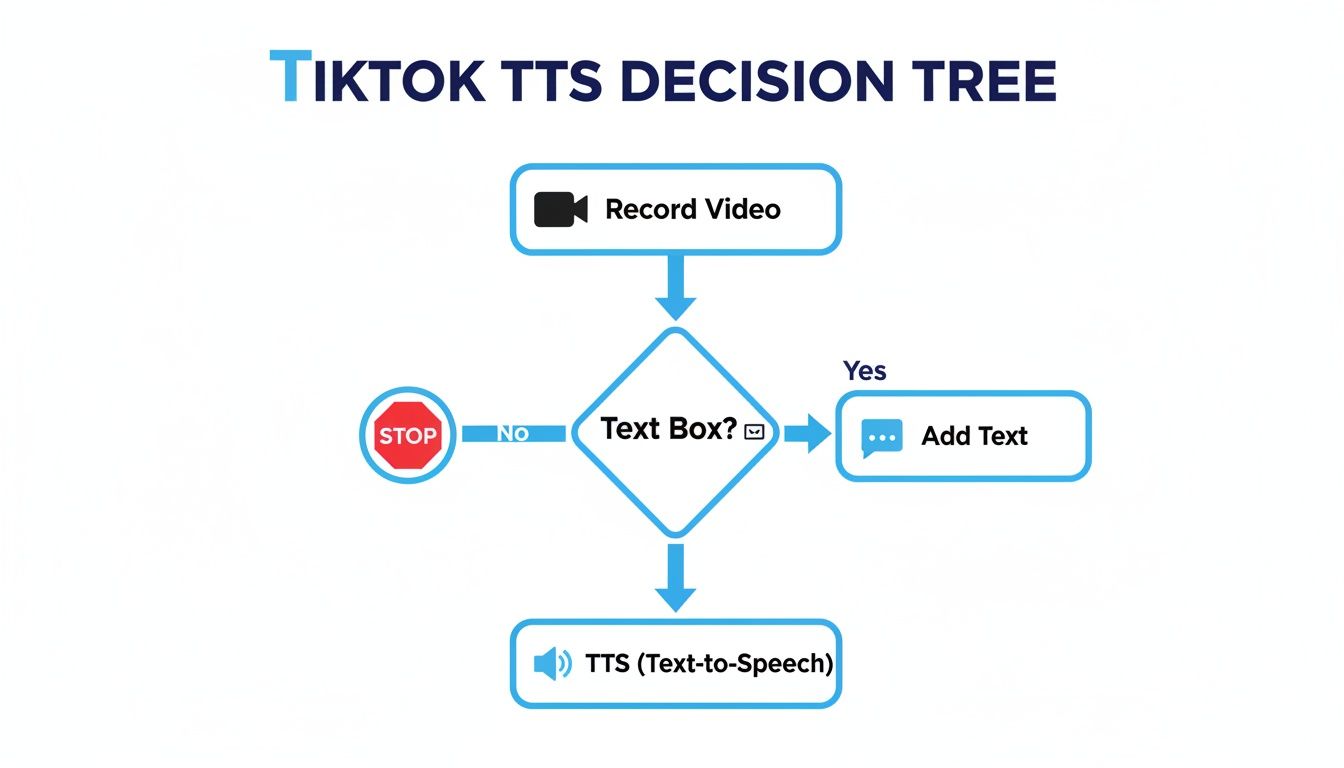
As you can see, the native tool is straightforward for quick clips. But to create something truly unique and high-quality, you really have to look beyond what the app offers out of the box.
Let's break down exactly what you gain by moving to a more advanced tool.
Comparing TikTok TTS vs. DailyShorts AI Voiceover
| Feature | TikTok Built-In TTS | DailyShorts AI Voiceover |
|---|---|---|
| Voice Variety | Limited selection of common, recognizable voices. | Hundreds of unique, human-like voices in multiple languages. |
| Audio Quality | Standard, often robotic-sounding audio. | Professional, broadcast-quality audio with emotional depth. |
| Customization | Basic options, with no control over tone or pacing. | Granular control over speed, pitch, and emotional inflection. |
| Workflow | Requires manual text entry and timing within the app. | Fully integrated with the video creation process; auto-syncs. |
| Brand Identity | Difficult to stand out; sounds like most other content. | Creates a unique, consistent "audio logo" for your brand. |
Ultimately, while TikTok's feature is fine for a quick one-off, a dedicated platform like DailyShorts gives you the tools to build a truly professional and memorable presence.
Your Voice Is Your Audio Logo
Choosing the right voice isn't just about sounding different for the sake of it. It’s a strategic branding decision. Over time, that voice becomes your signature. It's the thing that makes someone stop scrolling because they instantly recognize your content before they even see your name.
A consistent, high-quality voiceover acts like an audio logo. It builds trust and familiarity with your audience, making them more likely to stop and listen to what you have to say every single time.
For creators who need even more precision, external platforms offering dedicated Text to Speech↗ services give you incredible control. You can tweak pronunciation, adjust pacing, and fine-tune the emotional delivery until it's perfect.
A smooth, integrated workflow doesn’t just save you a ton of time—it gives you more freedom to be creative. Our guide on https://dailyshorts.ai/blog/how-to-create-ai-video↗ shows just how seamless this can be. The less time you spend fighting with apps and files, the more time you can spend doing what actually matters: telling a great story that connects with your audience and grows your channel.
Pro Tips for More Engaging TTS Videos
Alright, so you know how to turn on text-to-speech. That's the easy part. The real secret to making videos that people actually watch is learning how to direct that AI voice instead of just letting it drone on. This is where you go from making forgettable clips to content that genuinely hooks people.
The biggest lever you can pull is pacing. Seriously. AI voices read text exactly as it's written, so a huge, unbroken block of text will sound exactly like what it is: flat and robotic. You have to give it some life by getting creative with your punctuation and line breaks.
Think of punctuation as your director's notes for the AI narrator. Commas create little hesitations. Periods are full stops. Short, snappy sentences inject a burst of energy. By breaking up your script this way, you’re basically controlling the rhythm and flow of your entire video.
Mastering Script Pacing and Inflection
Let’s run through a quick example. Say you're making a video about a wild travel hack you just discovered. A lot of people would just type this all into one text box:
Before: "I went to the airport and discovered that if you ask the gate agent nicely they might give you a free upgrade to first class which was amazing."
The AI will read that as one long, monotone sentence. It gets the point across, sure, but there's zero personality. It's boring.
Now, let's break that up with some strategic pauses and multiple text boxes to really control the delivery.
After: "I went to the airport..." (Let that hang for a second) "...and discovered the craziest travel hack." (Now you've got their attention) "If you ask the gate agent, very nicely," (This adds a conversational, almost conspiratorial tone) "...they might just give you a free upgrade." (The big reveal!) "First. Class." (Short. Punchy. Maximum impact.)
See the difference? The second version tells a story. The pauses build suspense and make your audience lean in, waiting to hear what’s next. It’s a tiny adjustment to your workflow that makes a massive difference in how your video feels.
Adopt a Voice-First Creation Strategy
Here’s another pro-level move: get your audio narrative perfect before you even touch a single video clip. It’s a "voice-first" approach, and it’s a game-changer. This is actually a core part of how tools like DailyShorts↗ are designed to work. Instead of trying to cram a voiceover onto a video you've already edited, you build the perfect story with your audio first.
This forces you to nail down your message and pacing from the get-go.
- Write & Refine: First, just write the script. Focus on making it clear and punchy.
- Generate & Listen: Pop that script into an AI voice generator and create the audio track. Now, close your eyes and just listen. Does the story flow? Is the timing right?
- Edit for Audio: Tweak the script and regenerate the audio until it sounds absolutely perfect all by itself.
- Add Visuals: Only now do you start layering in video clips and images that match the tone and timing of your finished narration.
This voice-first method means your video is driven by a powerful, well-paced story, not just a jumble of clips. It’s how the pros do it, and it always results in a cleaner, more impactful video.
When you start treating your script like a screenwriter and put your audio first, your audience will completely forget they're even listening to an AI. For a deeper dive into crafting these kinds of narratives, check out our guide on how to make videos for social media↗.
When TikTok's Text-to-Speech Goes Rogue
There's nothing more frustrating than having a great video idea, only to be stopped in your tracks by a feature that's decided to take the day off. If you’re staring at your screen wondering why text-to-speech isn't working, trust me, we've all been there.
Before you start pulling your hair out, let's run through a few quick fixes. More often than not, it's a simple hiccup you can solve in a minute or two.
Sometimes the oldest trick in the book is the best one: just restart the app. A quick close-and-reopen can clear out minor bugs and get things back on track. If that doesn't do it, we'll have to dig a bit deeper.
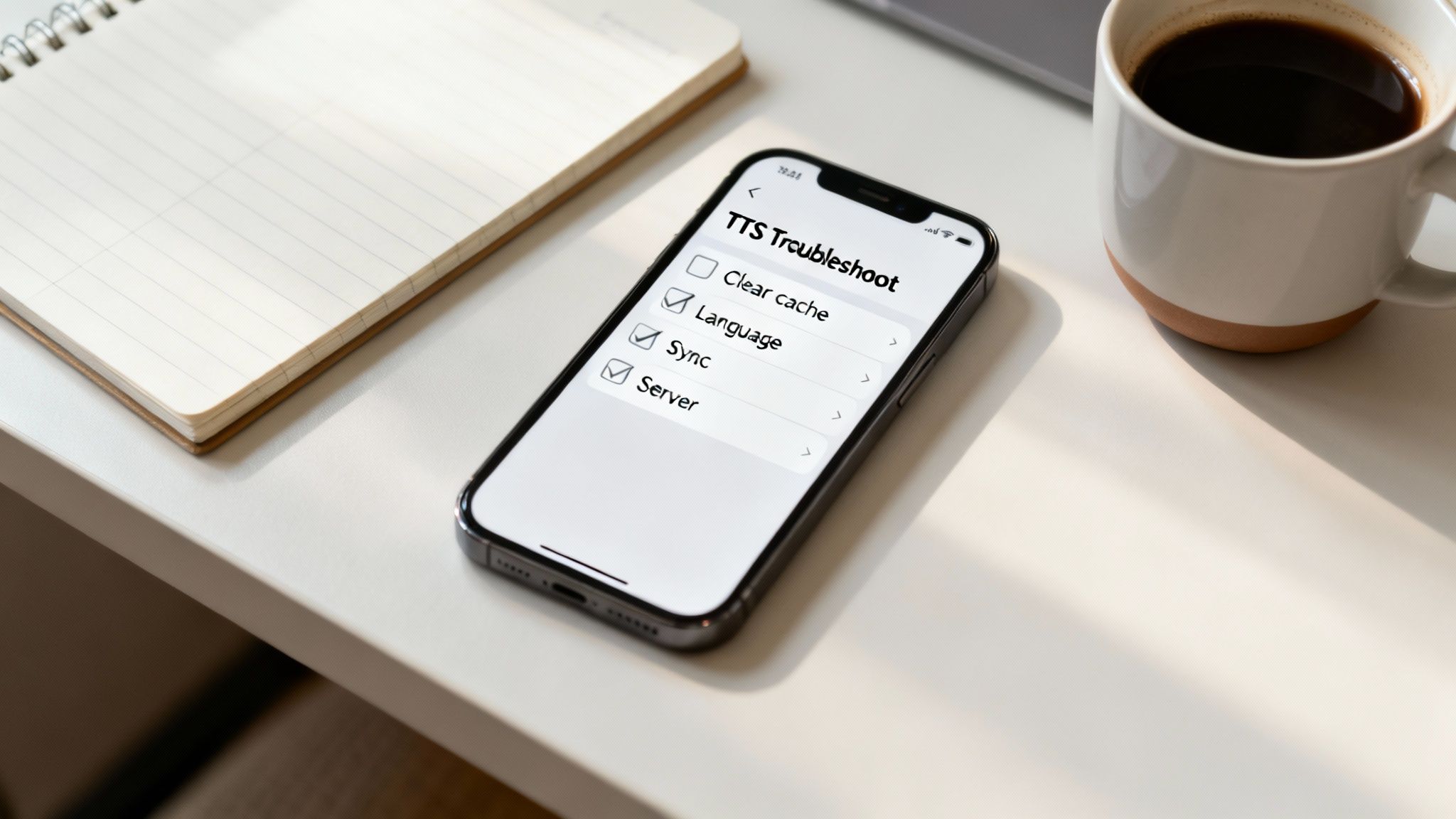
Common Glitches and How to Fix Them
Has the text-to-speech button completely disappeared? Is the audio choppy or just plain wrong? Let’s walk through the most common culprits. This checklist solves the vast majority of TTS headaches.
- Your TikTok App is Out of Date: This is the big one. TikTok is constantly adding new voices and features, and if your app is behind, you won't see them. Pop over to your app store and check for an update. It’s the number one reason for missing features.
- Your Cache is Full: Think of the cache as your app's short-term memory. When it gets too cluttered, things start to break. You can easily clear it by going to your profile > tapping the three lines > selecting "Settings and privacy" > and finding the "Clear cache" option.
- Your Phone's Language Setting is Conflicting: The TTS voices you have access to can depend on your device's language. If your phone is set to a language TikTok doesn't have many voice options for, the feature might not show up. As a test, try switching your phone's primary language to English and see if that brings the button back.
Keep in mind, sometimes the problem isn't on your end. If you've tried all the usual fixes and nothing works, it might be a bug on TikTok's side. When that happens, the only real solution is to be patient and wait for them to push a fix.
If you find yourself wrestling with the in-app tool more often than not, it might be time to look for a more reliable alternative. When audio sync issues and glitchy voiceovers become a regular part of your workflow, it's a clear sign you need a better tool. This is where platforms like DailyShorts↗ really shine, offering a stable and high-quality experience that lets you create perfect voiceovers every single time, minus the frustration.
Your Top TikTok TTS Questions, Answered
Even after you get the hang of TikTok’s text-to-speech, a few nagging questions always seem to come up. I’ve seen these pop up time and time again, so let’s clear the air and solve those little issues that can stop your creative process in its tracks.
Think of this as your quick-reference guide for those "wait, what if..." moments.
Can I Change the TikTok Text-to-Speech Voice After I’ve Already Posted?
This is probably the most common question I hear, and unfortunately, the answer is a hard no. Once your video is live, that text-to-speech audio is locked in for good. It becomes a permanent part of the video file.
If you have a change of heart about the voice, your only move is to delete the video, head back to your drafts, make the edit, and then re-upload the whole thing. It’s a bit of a pain, which is why I always tell people to double—and triple—check their videos before hitting that post button.
Why Can't I Find All the Text-to-Speech Voices on My Account?
It’s incredibly frustrating when you see another creator using a cool new voice, but you can't seem to find it anywhere in your own app. There are a few reasons why your voice options might be different:
- Where You Live: TikTok often tests and releases features, including new voices, in certain countries before rolling them out globally.
- Your Phone: Sometimes, new voices are designed to work best with the latest versions of iOS or Android, so older devices might get left behind.
- An Outdated App: This is the most frequent culprit. If you aren't running the latest version of TikTok, you're definitely missing out. Always keep your app updated!
TikTok is also constantly testing new voices with small, random groups of users. If you need a consistent set of high-quality voices for your brand, relying on a dedicated tool like DailyShorts↗ is a much safer bet. You’ll get a huge library of professional voices that are always there when you need them, no matter what TikTok is testing that week.
How Can I Get the AI Voice to Say a Word Correctly?
The AI can really stumble over unique names, brand-specific terms, or industry jargon. The best workaround is to spell the word out phonetically—literally, type it how it sounds.
This little trick is a lifesaver. For instance, the AI butchers a name like "Siobhan." Instead of typing the correct spelling, try writing it as "Shi-vawn" or "Shiv-on." You might need a few tries to nail the pronunciation, but it’s a surprisingly effective fix. Of course, for creators who need flawless pronunciation every single time without the trial-and-error, more advanced AI voice generators offer much more sophisticated results.
Ready to stop fussing with basic voices and start creating videos that truly stand out? At DailyShorts, we transform your concepts into viral-ready shorts with stunning 4K visuals, lifelike AI narration, and smart, automated editing. Start creating for free and hear the difference for yourself↗.
Ready to create viral videos?
Start creating viral TikTok and YouTube Shorts with DailyShorts AI today.