10 Essential Video Editing Tips for Beginners to Go Viral in 2026
DailyShorts AI
In the fast-paced world of TikTok, YouTube Shorts, and Reels, you have mere seconds to capture and hold attention. While a great idea is the starting point, professional editing is what transforms a simple clip into a viral-ready asset. The barrier to entry for video creation has never been lower, but the standards for quality have never been higher. This can make mastering video editing feel overwhelming, especially with complex software and what seems like a steep learning curve.
The good news is you don’t need years of experience to produce polished, engaging content that stops the scroll. This guide is designed to deliver the most impactful video editing tips for beginners, skipping the fluff and focusing on actionable techniques you can implement immediately. We will cover everything from foundational principles like composition and pacing to more advanced methods like J-cuts and strategic sound design.
We'll also touch on technical essentials, because even the best edit can be undermined by poor optimization. Learning how to compress videos for social media effectively↗ is a crucial skill for ensuring your content looks crisp on every platform without sacrificing quality. These 10 tips will equip you with the skills to not just create videos, but to craft experiences that build a loyal audience.
1. Master the Rule of Thirds for Better Composition
The fastest way to elevate your videos from amateur to professional is by mastering composition, and the rule of thirds is your secret weapon. This classic cinematographic principle involves mentally dividing your frame into a 3x3 grid, creating nine equal rectangles. Instead of centering your subject, you place key elements along the grid lines or at their intersections. This simple shift creates a more dynamic, balanced, and visually engaging shot that naturally guides the viewer's eye.
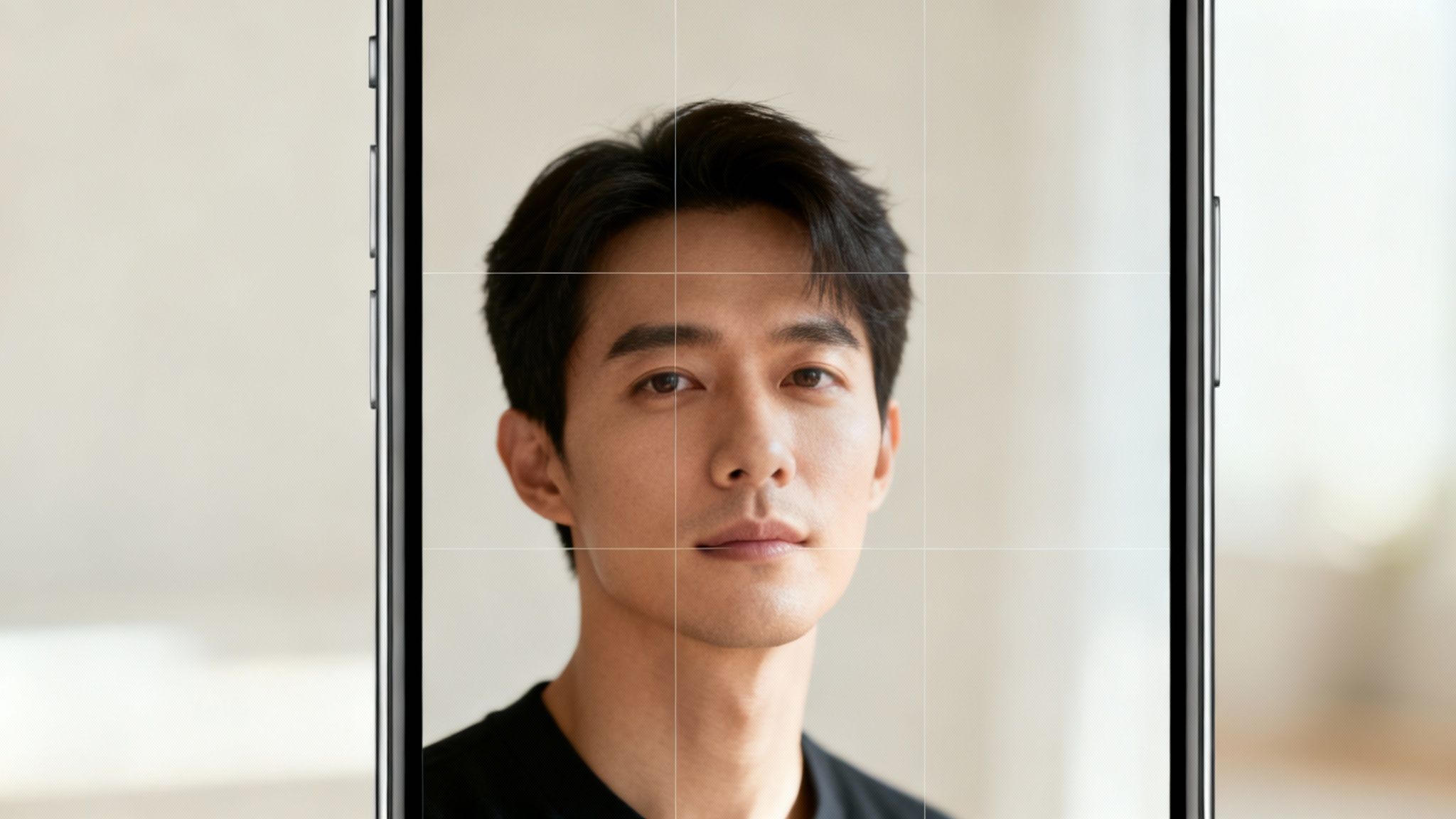
This technique is especially powerful in vertical, short-form content where every pixel counts. By placing yourself slightly off-center in a talking-head TikTok, you create negative space for text overlays or graphics without cluttering the frame. When demonstrating a product on YouTube Shorts, positioning it at a grid intersection draws immediate focus. This is one of the most fundamental video editing tips for beginners because it forces intentionality into your framing.
How to Apply It
- Activate Your Grid: Most smartphone cameras and editing software have a built-in grid overlay feature. Turn it on so you can see the lines while shooting and editing.
- Position Key Elements: Place the most important parts of your subject, like a person’s eyes or a product's key feature, on the intersection points for maximum impact.
- Balance Your Frame: Use the negative space created by off-center placement to add text, logos, or other visual elements, ensuring the composition feels intentional and not empty.
- Guide the Gaze: If your subject is looking or moving in a certain direction, position them on a vertical line so they have space in front of them. This creates a more natural and forward-looking feel.
2. Use Pacing and Cuts to Maintain Viewer Retention
In the world of short-form video, attention is currency. The single most effective way to hold a viewer's gaze is through masterful pacing and strategic cuts. Pacing is the rhythm of your edit, determining how quickly you move from one shot to the next. By using rapid cuts to build energy and longer takes for emotional impact, you create a viewing experience that feels intentional and hypnotic, drastically reducing drop-off rates.
This technique is the engine behind viral content. The quick, almost frantic cuts in a trending TikTok challenge or a MrBeast YouTube Short are not random; they are precisely timed to keep the brain engaged and wanting more. For creators, mastering pacing is one of the most crucial video editing tips for beginners because it directly influences watch time, a key metric for algorithmic success. For more insights on this, explore these essential YouTube Shorts best practices↗.
How to Apply It
- Cut on the Beat: Edit your clips so that the visual changes happen in sync with the rhythm of your background music or the cadence of your voiceover. This creates a seamless and satisfying flow.
- Hook Them Fast: Your most dynamic and engaging clips should appear within the first one to two seconds. Use rapid cuts (0.5-1 second long) to immediately signal high energy and value.
- Vary Your Cut Length: Don't use the same pace throughout. Mix quick cuts to build excitement during a product reveal with slightly longer cuts (2-3 seconds) when explaining a key point or telling a story.
- Cut on Action: Make your cuts feel invisible by transitioning from one shot to another at the peak of a movement. For example, cut from a wide shot of someone throwing a ball to a close-up just as it leaves their hand.
3. Leverage Text Overlays and On-Screen Graphics Strategically
In the silent-by-default world of social media feeds, text overlays are no longer optional; they are essential for grabbing and holding attention. Leveraging on-screen text and graphics ensures your message lands even when the sound is off, which is how 85% of viewers watch videos. This technique transforms passive viewing into an active experience by reinforcing key points, providing context, and boosting engagement through visual storytelling.
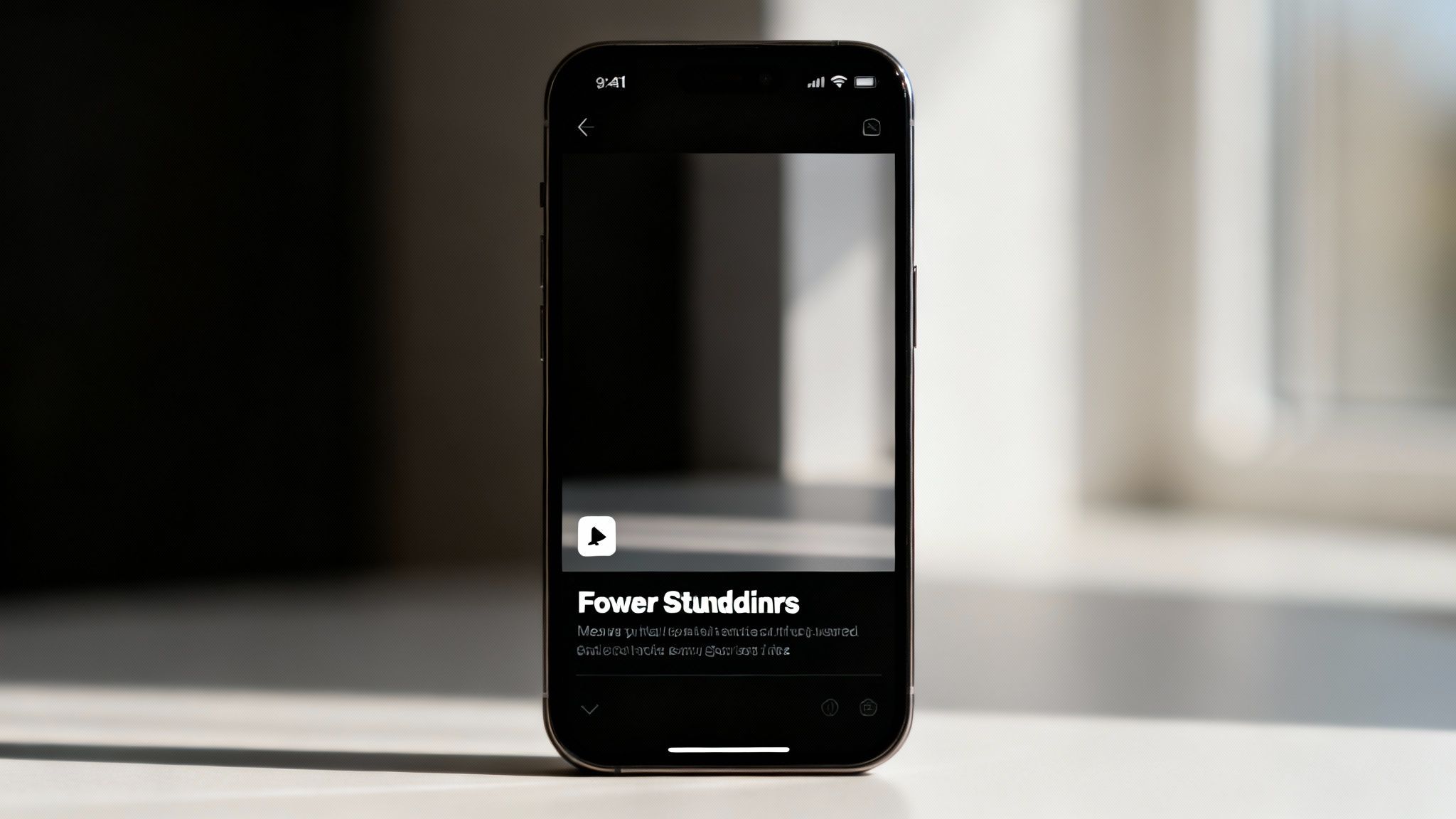
This is one of the most powerful video editing tips for beginners because it directly impacts comprehension and retention. Think of a tutorial video with step-by-step instructions appearing on screen or a motivational Reel where a powerful quote animates in time with the music. These elements provide clarity and add a professional, dynamic layer to your content. Using an AI-powered tool can help you create engaging AI video↗ with perfectly timed and branded text overlays automatically, saving you valuable time.
How to Apply It
- Prioritize Readability: Stick to clean, sans-serif fonts like Arial or Helvetica. Use high-contrast colors, like white or yellow text on a dark background, to ensure your words are easily legible on small mobile screens.
- Keep It Concise: Limit on-screen text to 5-10 words per overlay. Viewers need to comprehend the message in a split second before the next visual appears.
- Animate with Purpose: Make text pop, slide, or fade in to match beat drops in the audio or to emphasize a specific point. This creates a more polished and engaging rhythm.
- Use Safe Zones: Position your text and graphics away from the extreme edges of the frame to avoid them being cut off by platform interfaces on different devices.
4. Color Grading and Consistency for Professional Appearance
Color grading is the secret sauce that transforms flat, raw footage into a cinematic experience with a distinct mood and professional polish. It involves adjusting and harmonizing colors across your video to create a cohesive aesthetic. Consistent color grading not only makes your content look more high-end but also builds a recognizable brand identity, much like MrBeast’s signature bright, high-saturation style that is instantly identifiable to his audience.
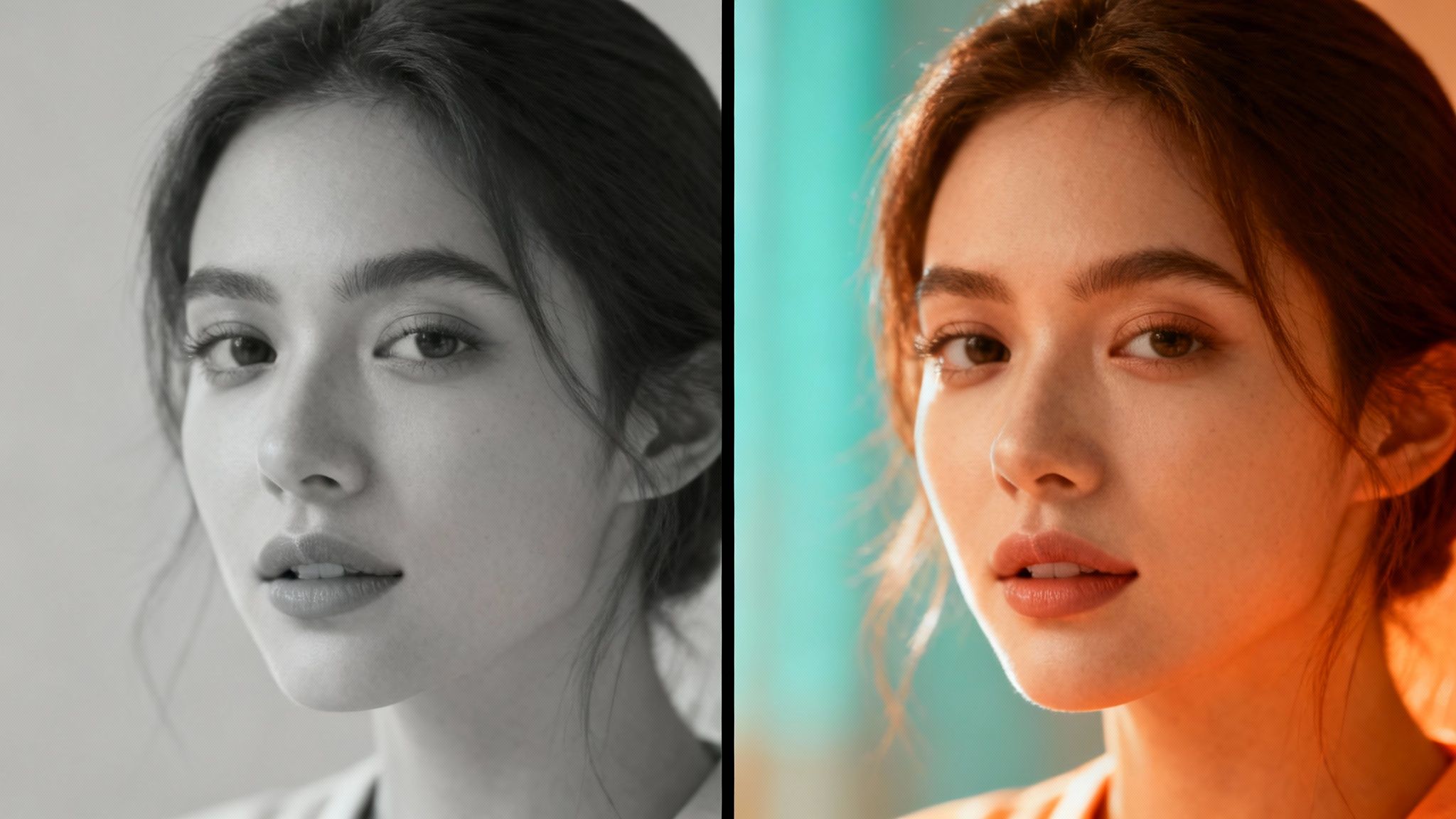
For short-form content on platforms like TikTok and YouTube Shorts, a strong color grade helps your video stand out in a crowded feed. This isn't just about making things look pretty; it's a powerful tool for visual storytelling and brand recognition. Applying a consistent look across all your clips is one of the most impactful video editing tips for beginners because it immediately signals a higher level of production value and care to your viewers.
How to Apply It
- Start with Presets: Most editing software offers built-in color presets or LUTs (Look-Up Tables). Start with one that matches your desired mood, like a warm, friendly tone or a cool, sophisticated one, and then tweak the settings.
- Boost Saturation for Mobile: Mobile screens thrive on vibrant colors. A modest 10-20% increase in saturation can make your video pop and grab attention while scrolling.
- Maintain Brand Consistency: Choose a color style that aligns with your brand and apply it to every video you create. This repetition builds a strong, memorable visual identity.
- Check on Mobile: Always preview your final video on an actual smartphone. Colors can look drastically different on a small screen compared to your desktop monitor.
5. Create Smooth Transitions Between Clips
Transitions are the narrative glue that holds your video together, bridging separate clips to maintain a seamless flow. A well-executed transition guides the viewer's attention without distracting them from the story. While flashy effects have their place, subtle and intentional transitions like a simple fade, a clean dissolve, or a dynamic cut-on-action are what separate polished content from disjointed home movies. This is a critical skill among video editing tips for beginners because it directly controls the rhythm and professional feel of your final product.
Think of a TikTok tutorial where a jump cut perfectly syncs with a music beat to reveal the next step, or a YouTube Shorts travel vlog that uses a quick zoom to move between stunning locations. These transitions aren't just for show; they serve a purpose. They maintain momentum, enhance the emotional impact of the music, and create a visually satisfying experience that keeps viewers engaged. Learning to choose the right transition for the right moment is key to creating compelling short-form content.
How to Apply It
- Stick to the Basics: For most situations, a straight cut, a quick fade, or a dissolve is all you need. Use these simple transitions for about 80% of your edits to maintain a clean, professional look.
- Cut on Action: Create a seamless effect by cutting from one clip to another during a moment of movement. For example, cut as a person turns their head or as an object is being placed on a table.
- Sync with Audio: Align your transitions with key moments in your music, like a beat drop or a change in melody. This audio-visual sync is incredibly satisfying for the viewer and adds a layer of polish.
- Use J-Cuts and L-Cuts: Have the audio from the next clip start before the video appears (J-cut) or let the audio from the previous clip continue over the new one (L-cut). This technique creates a much smoother and more professional flow between scenes.
6. Sync Audio, Voiceover and Sound Design with Video Elements
Poor audio can ruin an otherwise great video, but perfect audio synchronization can make it unforgettable. This goes beyond just adding a background track; it involves meticulously aligning your voiceover, music, and sound effects with the on-screen action. When a "whoosh" sound effect hits at the exact moment of a transition or a music beat drops with a dramatic visual reveal, it creates a seamless, immersive experience that captivates your audience and signals high production value.
This synergy between sound and visuals is one of the most powerful video editing tips for beginners because it directly manipulates the viewer's emotions and perception. A motivational YouTube Short feels more epic with a swelling orchestral track, while a quick tutorial is more effective when the narration aligns perfectly with each step shown. For ensuring your visuals and sound align perfectly, it's essential to learn how to synchronize audio with video flawlessly↗. Mastering this skill gives your content a professional polish that builds credibility and keeps viewers engaged until the very end.
How to Apply It
- Use the Waveform View: Your editor’s audio waveform is your best friend. Visually align peaks in the waveform (like a drum beat or a pronounced word) with key visual moments.
- Prioritize Voice Levels: Your voiceover or dialogue should always be clear. A good rule is to set it 6-12dB louder than any background music. Use audio ducking to automate this process.
- License Your Music: Avoid copyright strikes by using royalty-free music platforms. Services like Epidemic Sound, Artlist, and the YouTube Audio Library are essential resources for any creator.
- Add Impact with SFX: Place sound effects directly on the visual action they represent. A “pop” for a text reveal or a “swoosh” for a quick cut adds a layer of dynamic energy that makes your video feel more alive.
7. Master the L-Cut and J-Cut Editing Techniques
To make your edits feel seamless and professional, you need to move beyond simple jump cuts. This is where L-cuts and J-cuts come in. These advanced techniques create a smoother flow by staggering the audio and video transitions. A J-cut is when the audio from the next clip begins before the visuals change, while an L-cut is when the audio from the first clip continues over the start of the second clip. This creates a more immersive and less jarring viewing experience.
This method is a game-changer for short-form storytelling. In a TikTok narrative, using a J-cut to introduce a character's voice before they appear on screen builds anticipation. In a tutorial Reel, an L-cut that lets your voiceover instruction carry over as you transition to the next visual step creates a polished, uninterrupted guide. Mastering these cuts is one of the most impactful video editing tips for beginners because it immediately elevates the rhythm and sophistication of your edits.
How to Apply It
- Separate Your Tracks: To perform L-cuts and J-cuts, you must first unlink your audio and video clips in your editing timeline. This allows you to adjust their start and end points independently.
- Start with Small Overlaps: Begin by overlapping the audio and video by just half a second (0.5s) to one second. A little goes a long way in creating a smooth transition without feeling awkward.
- Use J-Cuts for Anticipation: Let the audio lead the visual. This is perfect for introducing a new scene, a speaker, or a sound effect that sets the stage for what’s coming next.
- Use L-Cuts for Continuity: Let the audio from a previous scene linger. This works well for showing a reaction shot while the person who was just speaking is still heard, connecting the two moments emotionally.
8. Use B-Roll and Stock Footage to Enhance Your Story
Relying solely on your main footage (A-roll), like a talking-head shot, can quickly become monotonous for viewers. This is where B-roll and stock footage become storytelling power tools. B-roll is supplementary footage you shoot that adds visual context to your narrative, while stock footage is pre-recorded video available for license. Integrating these clips breaks up static shots, covers up editing mistakes, and makes your story far more immersive and professional.
For short-form content, B-roll is non-negotiable. An educational TikTok explaining a concept can use stock clips to visually demonstrate what the narrator is describing. A business-focused YouTube Short can cut from a talking head to footage of their team at work. This technique is one of the most impactful video editing tips for beginners because it transforms a simple monologue into a dynamic visual narrative, holding viewer attention for longer.
How to Apply It
- Show, Don't Just Tell: When you mention a specific object, place, or action, cut to a B-roll clip of it. This visual reinforcement makes your message clearer and more engaging.
- Hide Your Cuts: Use B-roll to mask jump cuts in your main footage. By placing a relevant clip over the cut, you create a seamless transition that feels intentional rather than jarring.
- Source Smartly: Utilize free, high-quality stock video from sites like Pexels and Pixabay to get started. For more specific needs, you might explore how to get clips from YouTube videos ethically and legally for commentary or educational content.
- Maintain Consistency: Ensure your B-roll's color, lighting, and style match your primary footage. A quick color correction can help blend clips from different sources into a cohesive final product.
9. Optimize Video Format and Export Settings for Each Platform
All your hard work in editing means nothing if the final video is a pixelated mess. Exporting with the right settings is a crucial final step that prevents platforms from compressing your video into oblivion, ensuring it looks crisp and professional. Each platform, like TikTok or YouTube Shorts, has its own preferred technical specifications. Uploading a video that matches these specs minimizes quality loss and can even improve its performance in the algorithm.
Think of it like fitting a key into a lock. Using the correct export settings is the key that unlocks the best possible playback quality on a specific platform. For nearly all short-form content, a 1080x1920 resolution (a 9:16 aspect ratio) is the gold standard. Ignoring this step is one of the most common mistakes that separates beginners from seasoned creators, making it one of the most impactful video editing tips for beginners to master.
How to Apply It
- Standardize Your Resolution: Always export short-form content in 1080x1920 (9:16 vertical). This is the native resolution for TikTok, YouTube Shorts, and Instagram Reels. To dive deeper, you can learn more about the optimal TikTok aspect ratio↗ and why it's so important.
- Use the H.264 Codec: This is the universal standard for web video. It offers an excellent balance between high quality and small file size, ensuring fast uploads and smooth playback.
- Set the Right Bitrate: Aim for a bitrate between 6-10 Mbps (megabits per second). This range is high enough for sharp 1080p quality without creating an unnecessarily large file.
- Create Export Presets: To save time and ensure consistency, create and save a custom export preset in your editing software with these settings. This allows you to apply the perfect export profile with a single click.
10. Build Momentum with Hooks and Pattern Interrupts
In the world of short-form video, the first two seconds determine your success or failure. Building momentum with a powerful hook and strategically placed pattern interrupts is the key to stopping the scroll. A hook is an immediate, attention-grabbing statement or visual, while a pattern interrupt is a sudden change that breaks the viewer’s expectation, forcing their brain to re-engage and pay attention. This combination is a non-negotiable part of modern video creation.
Creators like MrBeast have mastered this by opening with the most dramatic part of the video, not a slow introduction. On TikTok, a trending video might start with a shocking statement or a sudden visual gag. This is one of the most critical video editing tips for beginners because it directly impacts your view duration and completion rates, which are major factors in how algorithms promote your content. Spend at least 20% of your editing time perfecting these crucial first moments.
How to Apply It
- Front-load the Action: Open with your most surprising claim, strongest visual, or most intriguing question. Never start with "Hey everyone, in this video..."
- Create Rapid Cuts: Use two to three quick jump cuts, zooms, or transitions in the opening two seconds to create an immediate pattern interrupt and establish a fast pace.
- Use Audio Stings: A sudden sound effect, a dramatic music drop, or a quick audio cue can effectively stop a viewer from scrolling past your video.
- Ask a Question: Start with a rhetorical question that taps into a common pain point or curiosity, making the viewer stay for the answer. For more detail on creating high-performing hooks, you can explore strategies on how to get views on YouTube Shorts↗.
10-Point Comparison: Video Editing Tips for Beginners
| Technique | Complexity 🔄 | Resource Requirements ⚡ | Expected Outcomes ⭐📊 | Ideal Use Cases 💡 | Key Advantages ⭐ |
|---|---|---|---|---|---|
| Master the Rule of Thirds for Better Composition | Low 🔄 — simple framing; some practice | Minimal ⚡ — camera grid or basic editor | Better visual balance and focus; more professional look | Vertical short-form talking-heads, product demos | Quick visual improvement with little editing |
| Use Pacing and Cuts to Maintain Viewer Retention | Medium 🔄 — timing & rhythm skills | Moderate ⚡ — editing software, music tracks | Increased watch time and engagement; energetic pacing | Hooks, montages, high-energy shorts | Boosts retention and algorithmic performance |
| Leverage Text Overlays and On-Screen Graphics Strategically | Low–Medium 🔄 — design + timing | Low–Moderate ⚡ — fonts, graphics, editor features | Improved accessibility, clarity, and engagement | Muted playback, tutorials, CTAs, educational clips | Reinforces messaging and aids discoverability |
| Color Grading and Consistency for Professional Appearance | Medium 🔄 — color theory knowledge | Moderate ⚡ — LUTs, grading tools | Cohesive brand look; higher perceived production value | Brand channels, cinematic reels, series consistency | Elevates footage and creates recognizable style |
| Create Smooth Transitions Between Clips | Low–Medium 🔄 — timing precision | Low ⚡ — built-in editor transitions | Smoother flow; fewer jarring edits | Tutorials, travel sequences, match-cut scenes | Adds polish without heavy effects |
| Sync Audio, Voiceover and Sound Design with Video Elements | High 🔄 — precise audio-video work | High ⚡ — DAW/editor, licensed music, FX | Strong emotional impact; increased trust and retention | Narrative, motivational, tutorial voiceover content | Professional polish; amplifies emotion and clarity |
| Master the L-Cut and J-Cut Editing Techniques | Medium–High 🔄 — timeline skill | Moderate ⚡ — multitrack editor | More natural transitions; improved narrative flow | Documentary-style, storytelling, voiceover-heavy shorts | Seamless audio-driven scene changes |
| Use B-Roll and Stock Footage to Enhance Your Story | Low–Medium 🔄 — selection & matching | Moderate ⚡ — stock libraries, licensing costs | Greater visual interest; fills coverage gaps | Educational, travel, business, narration-led videos | Adds variety cost-effectively; hides cuts |
| Optimize Video Format and Export Settings for Each Platform | Medium 🔄 — technical knowledge | Low–Moderate ⚡ — encoder, presets per platform | Maximized playback quality and platform performance | All platform-specific uploads, high-volume creators | Prevents re-encoding loss; consistent delivery |
| Build Momentum with Hooks and Pattern Interrupts | Medium 🔄 — creative testing | Low ⚡ — scripting, quick edits | Higher initial play rate and longer retention | First 1–2 seconds of any short-form content | Grabs attention fast; increases viral potential |
Your Next Step: Edit Smarter, Not Hardar
You've just navigated a comprehensive blueprint of video editing fundamentals, from the foundational principles of composition to the advanced nuances of audio and pacing. The journey from a beginner to a confident creator isn't about memorizing every single technique at once. It’s about understanding that great editing is invisible; it serves the story, enhances the message, and respects the viewer's attention.
The ten tips we’ve explored are more than just a checklist; they are interconnected tools designed to solve specific creative problems. Poor viewer retention can often be fixed by mastering your pacing with faster cuts and pattern interrupts. A bland visual narrative comes to life with strategic B-roll and consistent color grading. By implementing L-cuts and J-cuts, you transform choppy audio transitions into a seamless, professional-sounding experience. Think of each tip as a lever you can pull to elevate a specific aspect of your final product.
From Theory to Timeline: Your Action Plan
The most common hurdle for new creators is analysis paralysis. With so many video editing tips for beginners available, where do you start? The answer is simple: start small and build momentum.
For your very next project, choose just two or three areas to focus on:
- Pacing and Hooks: Obsess over the first three seconds. How can you make your hook more compelling? Where can you trim a few frames to tighten the pace and keep the energy high?
- Audio Polish: Instead of just dropping in a music track, focus on your sound design. Add one or two subtle sound effects. Ensure your voiceover is crisp and clear, and try syncing a specific visual cut to a beat in the music.
- Visual Cohesion: Pay close attention to your text overlays and color. Is your text easy to read? Do the colors in your clips feel consistent and intentional, or are they a distracting mix of different lighting conditions?
By concentrating on a few key elements per video, you will build muscle memory and internalize these best practices. Each video becomes a training ground, and over time, these conscious decisions will become an instinctual part of your creative workflow. This focused approach is one of the most effective video editing tips for beginners because it prevents overwhelm and delivers tangible improvements with every export.
The True Goal: Connecting with Your Audience
Ultimately, mastering video editing is not just about technical proficiency. It's about forging a stronger connection with your audience. Every cut, color adjustment, and sound effect is an opportunity to guide their emotions, clarify your message, and hold their attention in a crowded digital landscape. When you deliver a polished, thoughtfully edited video, you are signaling to your viewers that you value their time. This builds trust, encourages engagement, and turns passive viewers into a loyal community.
The skills you develop here are a powerful asset, allowing you to transform simple ideas into captivating short-form content that drives growth, whether you're building a personal brand or promoting a business. Don't just follow the steps; understand the why behind them. Experiment, break the rules once you know them, and find the unique editing style that makes your content unmistakably yours. Your journey starts now, one edit at a time.
Ready to put these video editing tips into practice without getting bogged down by the timeline? DailyShorts uses AI to automate the most demanding parts of short-form video creation, from generating visuals and voiceovers to applying smart edits and transitions. Stop spending hours on technical tasks and start scaling your content production today by visiting DailyShorts↗.
Ready to create viral videos?
Start creating viral TikTok and YouTube Shorts with DailyShorts AI today.